

Key takeaways:
- Keeping your Google Business Profile hours accurate helps people searching on Google know when a location is actually open, including on holidays and other one-off dates.
- For a single location, you can change main or special hours directly in your Business Profile. But chains and franchises that have to update many locations need a specialized tool.
- Locasty centralizes listing management and lets you edit information for multiple locations in one place, cutting down on manual work.
A schedule change that seems simple for a single store can turn into an operational headache when it has to be replicated across dozens or hundreds of addresses.
If a chain changes how its physical stores close on Sundays, for example, every profile needs to reflect the new information so customers don't find conflicting details on Google Maps. The same goes for holidays, events, and other exceptions.
In this article, you'll learn how to change your business hours on Google, when to use special hours, how updating multiple locations works, and what to do when an edit is still pending.
How do you change your business hours on Google?
For a single location, you can change the hours directly on the Business Profile shown in Google Search or on Google Maps. It only takes a few steps:
- Open the location's Business Profile with an account that has permission to manage it.
- Select Edit profile, then Hours.
- In the opening hours section, next to Hours, select Edit and choose Open with main hours.
- Check the days of the week the location is open.
- Set the opening and closing time for each day.
- Select Save.
These are the business's main hours, and they should reflect a normal week of operation. If the business closes for lunch or has another fixed break, you can enter two time periods on the same day.
For locations that are open 24 hours, the hours field itself lets you mark the business as open around the clock.
Also read: How to create a Google Business Profile
Which type of hours should you use on your Business Profile?
Not every change belongs in your main hours. Google offers different types of hours for different situations:
- Main hours: the days and times the business is normally open during a typical week.
- Special hours: for temporary changes, such as holidays, events, or closures of up to six consecutive days.
- More hours: can be used when certain services keep a different schedule from your main hours, such as pickup, delivery, or specific kinds of customer service.
Keeping these fields separate prevents a temporary change from overwriting your main hours, which you would then have to restore by hand.
Also read: Local SEO guide: strategies to make your business stand out
How do you change your business hours on Google for holidays and special dates?
Holidays and other temporary changes should be entered under Special hours. That way, your main hours stay saved and show up again as usual once the configured date has passed.
The process is similar to a regular edit:
- Open your brand's Business Profile and select Edit profile, then Hours.
- In the opening hours section, find Special hours and select Edit.
- Pick one of the dates Google suggests or add a new one.
- If the location will be open, uncheck Closed and enter the opening hours.
- If it will stay closed all day, keep Closed selected.
- Select Save.
Use this feature when the business temporarily changes its hours or stays closed for up to six consecutive days. For longer periods, Google recommends considering whether to mark the location as temporarily closed instead.
Also read: How one location's Google reputation affects your entire franchise network
How do you edit the Google Business Profile of multiple locations at once?
When a business, such as a chain or franchise, manages many profiles, repeating the edit location by location is no longer the only viable option.
Google itself offers a bulk upload spreadsheet. It lets you fill in the main hours for each day, plus special hours. For holiday changes, for example, the special hours column lets you enter the date and the opening hours for each location.
But the format needs careful attention: any column you include but leave blank can erase existing information during the import. For chains with different hours for different groups of stores, or with frequent changes, keeping this under control can add to the operational workload.
How do you bulk edit Google Business Profiles with Locasty?
If you use our Google Business Profile management tool, the process gets easier.
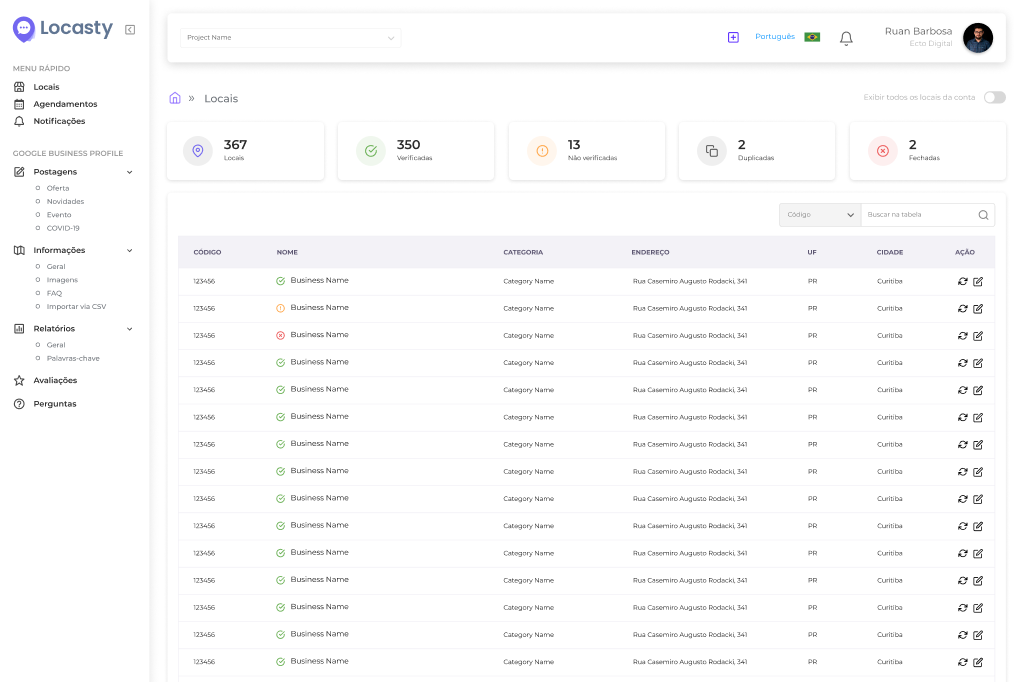
Locasty uses the official Google Business Profile API and brings a company's locations together in a single dashboard. Its features include bulk editing of locations, along with filters and segmentation that help manage operations with many stores.
This way, managers and teams can view every location in one place and apply changes at scale, instead of opening each profile separately. That makes standardization easier and reduces the risk of one location being left with information that differs from the rest.
Schedule a Locasty demo to see how to manage your locations from one place and explore everything the platform can do!
Also read: Store missing from Google Maps? 7 reasons and how to fix them
Frequently asked questions about business hours on Google Business Profile
Updating your hours seems like a simple task, but a few questions come up when an edit goes under review or when Google finds information that differs from what you entered. Here are the answers to the most common ones:
1. How long does it take Google to update business hours?
Changes made to a verified Business Profile go through a review. According to the Google Help Center, the review usually takes up to 10 minutes, but some edits can stay under review for up to 30 days.
After you save, the edit may show as accepted, pending, or not approved. Once it's accepted, the updated information appears on the Business Profile.
2. What should you do if your business hours update on Google is still pending?
First, check the status of the edit on the Business Profile itself. A pending change means Google is still reviewing the new information.
Since the process can take up to 30 days in specific situations, there's no need to keep resubmitting the same edit. If the change is rejected, in some cases you can appeal it.
Also read: 5 common mistakes when responding to negative reviews
3. Can Google change your hours without you making an edit?
Yes. Google can update information when it receives reports that the details on a profile look incorrect. This information can come from users and from other sources Google relies on.
When Google makes an update, the business may receive a notification and see an alert under Edit profile.
That's why, especially for operations with many locations, it's important to review your profiles regularly rather than assuming that information you entered will stay the same indefinitely.
4. Do incorrect business hours affect your local search ranking?
Google doesn't list business hours as a ranking factor on its own. However, it recommends keeping your profile information complete and accurate, and it states that businesses with correct information are more likely to show up in local results.
With that in mind, treat your hours as part of the overall quality and consistency of your listing's information, as well as an essential detail for anyone planning to visit the location.
Also read: Local digital presence: what it is and how to build it for multi-location businesses
5. Can you set holiday hours in advance?
Yes. The Special hours field lets you add future dates and set whether the location will be open, closed, or running on different hours that day.
For businesses with many locations, scheduling these changes ahead of time with a specialized tool like Locasty helps avoid last-minute fixes and reduces the risk of a profile still showing outdated information.
With our tool, your team can make this process simpler and more predictable. Schedule a Locasty demo and explore everything the platform can do!
Also read: Google Business Profile photo guide: how to get your images right
Cover image — Source: dwiprasetyo - Magnific.com (2026)



0 comments