

Key takeaways:
- The photos on your Google Business Profile are often the first contact between a business and the person searching for it: outdated or off-brand photos hurt both that first impression and your local ranking.
- Google recommends JPG or PNG files between 10 KB and 5 MB, with a minimum resolution of 250 x 250 pixels (720 x 720 recommended). Ignoring these specs or using stock photos can get a photo rejected before it ever goes live.
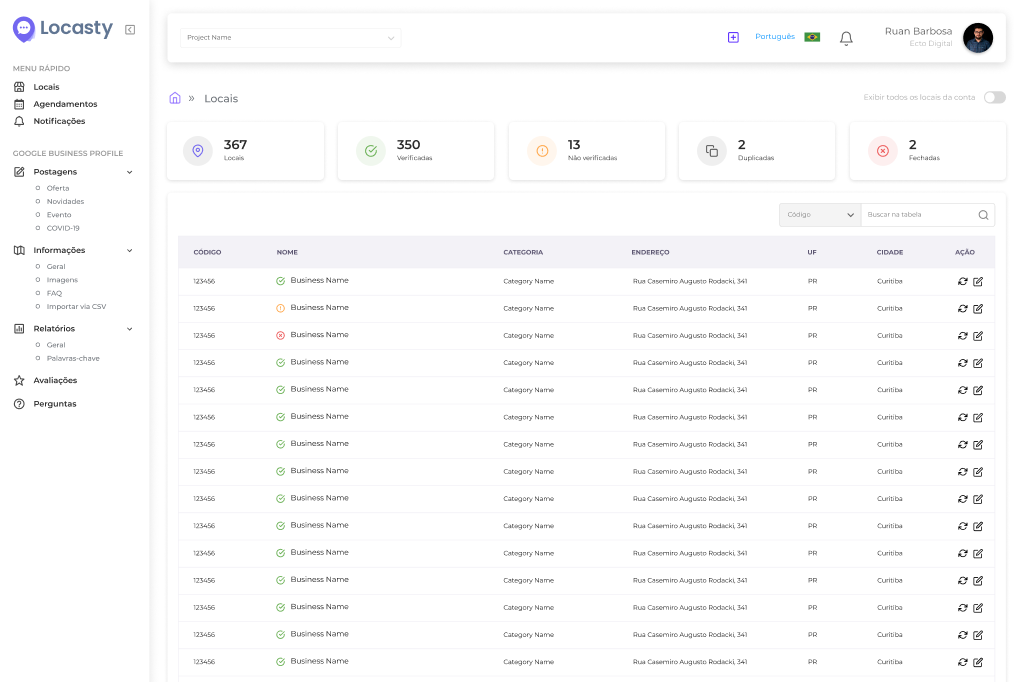
- For chains with more than one location, keeping the same visual standard across every listing is a branding issue, not just an aesthetic one, and it's exactly what Locasty centralizes in a single dashboard.
______________________________________________________________________________________
Before deciding to visit a business, many people have already formed an opinion about it just by looking at the photos on its Google profile. A dark, outdated, or off-brand image can ruin that first impression, even when the product or service behind it is excellent.
A Google Business Profile is usually the first point of contact between a local business and the people searching for it. And photos are at the heart of that experience: they show up before any text, front and center in search results and on Google Maps.
In this guide, you'll learn how the profile works today, how to optimize photos to meet Google's guidelines, and why keeping your images up to date is also a way to look after your brand's reputation.
What is Google My Business, and how does it work today?
"Google My Business" is still the name most people use day to day, but the tool has been renamed Google Business Profile.
The idea behind it hasn't changed: it puts the information that helps people decide whether to visit, call, or buy from a business in one place, including its address, business hours, reviews, and, of course, photos.
According to Google's own Help Center, local ranking takes relevance, distance, and prominence into account. Complete information, including photos and videos, improves a profile's chances of ranking well in local search.
That's because a photo reduces uncertainty for the person searching: it shows the place, the product, or the service before any contact happens. So the more complete the profile, with good images, accurate information, and reviews, the more likely it is to earn the trust of someone who is about to make a purchase decision.
Types of photos you can add to your profile
Google Business Profile accepts more than one type of image, and each plays a different role in presenting the business. Here are the three main ones:
1. Profile photo (logo)
This is the image that helps people recognize the brand at a glance in Google results. It usually appears as a circle next to the business name.
2. Cover photo
It sits prominently at the top of the profile and is usually the first large image people see. Setting a cover photo tells Google which image you'd prefer to show first, although that isn't guaranteed.
3. Additional photos of products, services, and staff
Beyond the profile and cover photos, you can add images that show your location inside and out, your products, your services in action, and your team. These photos help searchers picture the experience before deciding to visit.
How to optimize photos for Google Business Profile
Optimizing an image means following the right technical guidelines so that a good photo doesn't lose quality on your profile. Here's what to check before uploading:
Photo format, file size, and resolution
According to the official Business Profile Help Center, these are Google's recommendations for making your photos look good on your profile:
- Format: JPG or PNG.
- File size: between 10 KB and 5 MB.
- Recommended resolution: 720 x 720 pixels.
- Minimum resolution: 250 x 250 pixels.
- Quality: sharp, well lit, and without heavy filters. The image needs to reflect what the business actually looks like.
One point worth stressing: these are Google's current guidelines, and the platform may update them from time to time, so it's always a good idea to check the official help page before uploading photos in bulk.
How do you optimize photos for the web without losing quality?
Optimizing images for the web isn't only about making the file smaller. A few practices help preserve perceived quality even with a smaller file:
- Shoot in natural light whenever possible; it reduces the need for heavy editing later.
- Avoid crops that hide important elements, such as the business name or the main product.
- Choose compression that preserves sharpness over drastically lowering the resolution. Most image editors and online compression tools let you set the export quality (a setting between 80% and 90% shrinks the file considerably with no noticeable loss of sharpness).
- Don't reduce the photo's width and height to shrink the file, since that compromises the minimum resolution Google requires.
- Keep a consistent look across your photos (same color tone, same framing), especially if the business has more than one physical location.
Common mistakes that hurt your profile photos
Some mistakes show up again and again on poorly rated profiles:
- Stock photos instead of real photos of the location. According to Google's Help Center, every photo or video goes through a review before it's published. If the content violates the policies (for example, by being a stock photo), it's marked as "not approved" and simply doesn't appear on Google Search or Maps. In other words, Google won't stop you from uploading the file, but it won't publish it on your profile.
- Images that are dark, blurry, or below the recommended minimum resolution.
- Filters that change the real appearance of the location or the product.
- Outdated photos that no longer reflect the business's current storefront, menu, or decor.
Also read: 5 common mistakes when responding to negative reviews
Why do good Google Business Profile photos matter for your brand?
Meeting the technical specs is only the foundation. The real impact of a Business Profile photo is on how people perceive the brand before they ever get in touch.
An image that looks frozen in time suggests that nobody is looking after the profile. This matters most in quick decisions, like choosing between two similar options on Google Maps.
People won't ask why the photo is out of date; they'll simply take it as part of their experience with the brand, especially if the business has more than one location.
How are photos perceived across multi-location brands?
When a business has more than one address, the challenge is no longer just having one good photo. The images also need to meet the same quality standard across every location.
A chain where each store has photos of different quality and a different visual identity comes across as inconsistent. Keeping the same visual language across locations is a direct way to protect how the brand is perceived, no matter which store someone finds first.
How do you remove or report Business Profile photos that don't represent your business?
On Google Business Profile, it's not only the people who manage the account who can post photos: any visitor can too. That means off-brand or irrelevant images, or images that violate Google's photo and video policies, may occasionally show up on your profile.
Under those guidelines, uploaded content must create a positive experience for people viewing the profile and meet specific photo and video criteria; stock photos, for example, aren't allowed and can be removed.
How do you get visitor photos removed?
Photos uploaded by the business itself can be deleted directly from the profile's photos tab. Photos uploaded by other people, however, can only be removed by reporting them.
The process for reporting inappropriate photos or videos is described in Google's Help Center. After a report, Google reviews the content and decides whether it should be blocked, removed, or restricted, which can take a few business days.
How do you keep your Google My Business photos up to date?
Keeping your photos current on Google takes ongoing effort, especially when the business has multiple addresses.
Images often go stale simply because there's no centralized process for reviewing them. For businesses with 10 or more locations, Google itself allows bulk photo uploads via spreadsheet, which helps cut down on some of the manual work.
Even so, coordinating the process (deciding which photos to use, ensuring a consistent quality standard, and keeping everything current over time) usually calls for a dedicated multi-location management tool, not just Google's native features.
That's exactly where Locasty comes in: instead of reviewing listings one by one, you centralize the images of every location, maintain your brand's visual standard and make sure no store is left with outdated photos while the others are up to date.
If your chain needs to keep every location's Business Profile up to date on Google without relying on manual processes, get started for free with Locasty and see firsthand how much simpler it gets!
Also read: How to create a Google Business Profile
Cover image — Source: Freepik / Magnific.com (2026)



0 comments