
Key takeaways:
- A Google Business Profile is the free listing that makes a business show up in Search and on Google Maps with its address, hours, photos, and reviews.
- According to Google's own data, businesses with a complete profile are 2.7 times more likely to be considered reputable by consumers.
- For chains with dozens or hundreds of locations, standardizing information, making bulk edits, and tracking local SEO listing by listing becomes unmanageable without a tool built for that scale.
__________________________________________________________________________________________________
Having a Google Business Profile is what decides whether you show up when someone searches for a business like yours. In this guide, you'll find the complete step-by-step process to create, verify, and optimize your profile, plus how to appear on Google Maps and how to handle customer reviews.
What is a Google Business Profile?
A Google Business Profile is the free listing that makes your business appear in Search and on Google Maps with details such as your address, phone number, business hours, photos, and reviews.
So when someone searches for something like "pharmacy open now" or "gym near me", businesses with a registered, up-to-date profile can stand out more in the local results, depending on factors such as relevance, distance, and the quality of the information.
How to create a Google Business Profile: step by step
Putting your business on Google is simple, but a few details make a real difference. Here's how:
1. Sign in to your Google Account
You need a Google Account to create the profile. If you don't have one tied to your business yet, create a new one and, if possible, use an email address on your company's domain to come across as more credible.
2. Go to Google Business Profile
Go to the Google Business Profile page and click the button to get started. Enter your business's real-world name, exactly as customers know it. Don't pad the name with extra keywords or added location terms, as in "Central Bakery – Fresh Bread Every Day": that violates Google's policies and can hurt the profile's ranking.
If a message says the business has already been verified by someone else, use the option to request ownership of the profile and follow the steps shown.
3. Choose your business category
Select the most specific category possible for your business. You can add additional categories, but the primary category is still the most important one, since it carries the most weight in helping Google understand what your business is about.
4. Add your business location on Google
If you're wondering, "How do I add my business location to Google?", this is the step.
If your business serves customers at a physical address, once you've filled in the category, you'll be able to add the full address and mark the location on the map.
And if your business serves customers at their homes or provides services across different areas without a storefront open to the public, you can hide the address and set only the service areas you cover.
5. Add your phone number, website, and other contact details
Add a working phone number, your business website and, if it makes sense, your WhatsApp link. For chains with multiple locations, the best practice is to use each store's own phone number rather than a central customer service line, since that gives each customer a better experience.
It's worth repeating: in businesses with multiple locations, each location must have its own accurate and consistent data. The address and phone number of location A, for example, must be the same on its Business Profile, website, social media, and any other directory that lists that location.
The same goes for location B, location C, and so on. Inconsistencies in this data can reduce Google's confidence in the profile and hurt the business's ranking in local search.
6. Verify your profile
Verification proves to Google that you own or manage the business. Without it, you can't fully control the information shown, edit important details, or interact with customers through the profile.
The methods available for this step vary by business category and location, and may include:
- Video verification, where you record the storefront, the signage, and the inside of the premises.
- Phone or email verification, where you receive a code to enter in the dashboard.
- Mail verification, where a physical letter is sent to the registered address; this usually takes 5 to 14 business days.
How do I access my Google Business Profile?
Now that you know how to create a Google Business Profile and have already signed up, you can reach the management dashboard in two ways:
- go to the Google Business Profile page with the Google Account linked to the profile; or
- search for your business name directly on Google and click the option to manage your Business Profile.
You can also make one-off edits directly from Google Maps or Search, without opening the full dashboard.
Giving other people access to your Business Profile
If more than one person on your team needs to access the profile, the owner can add other accounts as managers and set the permission level for each one. That way, keeping the information up to date doesn't depend on a single person in the company.
How to show up on Google Maps with a Business Profile
Having a profile doesn't guarantee that your business will automatically appear at the top. Google shows local businesses mainly in two ways: the local pack, the box with up to three businesses at the top of the search results, and the pins on Google Maps itself.
Local results are determined mainly by relevance, distance, and prominence. In practice, a few things help strengthen your profile:
- The right category and complete, accurate business information.
- The volume and quality of your reviews.
- Recent, relevant photos of the location, products, or services.
- How close the searcher is to the registered address.
- How often the profile is updated, including posts and replies to reviews.
Complete, up-to-date, well-maintained profiles are better positioned to show up in relevant searches and to earn the trust of people searching. That's why showing up on Maps isn't a one-time task; it takes ongoing maintenance.
This is backed up by Google's own data on Business Profiles, which states that:
- Businesses with a complete profile on Search and Maps are 2.7 times more likely to be considered by consumers.
- Customers are 70% more likely to visit businesses that have a Google Business Profile, and 50% more likely to make a purchase.
Google reviews on your Business Profile
Customer reviews are among the factors that weigh most heavily in both local rankings and searchers' decisions. So keep these key points in mind:
- Make it easy: ask for a review right after you've served the customer, and send them a direct link to your profile by WhatsApp or email. That makes them more likely to leave one.
- Reply to every review, positive or negative. It shows that the business is engaged and cares about each customer's feedback.
- Avoid replies that are generic or overly automated. A reply that addresses the specific situation described shows more care than a canned message.
- Never buy fake reviews or offer incentives in exchange for reviews. This violates Google's policies and can get your profile suspended.
Also read: 5 common mistakes when responding to negative reviews
Google Business Profile Manager for multiple locations
For businesses with a single location, the process of creating the profile and updating the information described above works well. But for chains with many physical stores, such as franchises, pharmacy chains, clinics, or car dealerships, the challenge is keeping every location's information up to date.
For these cases, Google itself offers Business Profile Manager, designed to manage multiple locations from a single account. In practice, however, large chains tend to run into issues this native manager doesn't solve on its own, such as:
- Standardizing information across locations.
- Updating data in bulk without duplicated work.
- Monitoring the local SEO checklist for each listing.
- Organizing positive and negative reviews.
- Answering questions across hundreds of profiles from one place.
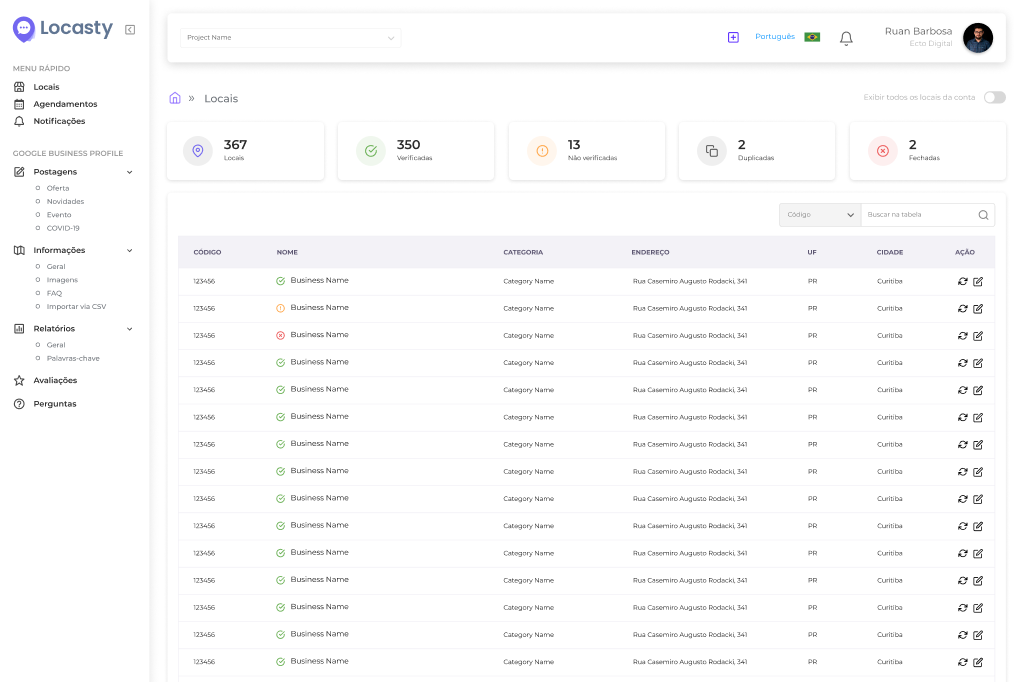
Your best option here is to consider a tool built for chains with a large number of physical stores, such as Locasty. With it, your business can:
- Standardize information across all locations, keeping every store consistent.
- Bulk-edit hours, phone numbers, and other details without going into each listing one by one.
- Follow an automated local SEO checklist to see what still needs optimizing on each profile.
- Manage reviews and questions from every location in a single dashboard.
Frequently asked questions about creating a Google Business Profile
Below, we answer the most common questions from people who are creating or already managing a Google Business Profile, from the first sign-up to managing multiple locations:
1. Is Google Business Profile free?
Yes. Creating and maintaining a Google Business Profile costs nothing. Google doesn't charge for a business to appear in Search or on Maps.
2. What's the difference between Google My Business and Google Business Profile?
None: they're the same tool. Google announced the name change from Google My Business to Google Business Profile in 2021, and the transition away from the old app was completed in 2022.
3. Can I create a profile without a physical address?
Yes, as long as the business has in-person contact with customers, even if that's at the customer's home or within a defined service area. Online-only businesses with no in-person service aren't eligible for a Business Profile and should focus on other visibility channels, such as their website, SEO, Google Ads, and social media.
4. How long does it take for a profile to be verified?
It depends on the method you choose. Video, phone, or email verification is usually faster, while a code sent by mail can take 5 to 14 business days.
5. How do I edit my information once the profile is live?
There are two main ways: go to Google Business Profile with the account linked to the business, or search for your business name on Google and use the option to manage your Business Profile, which lets you edit it directly from Search or Maps.
6. How do I manage the profiles of multiple locations at once?
For large chains with dozens or hundreds of locations, you can sign up for a location management platform like Locasty, which standardizes information across locations, enables bulk edits, and brings together reviews and questions from all of them, among other features.
Schedule a Locasty demo and see every feature available for your business!
Also read: Local SEO guide: strategies to make your business stand out
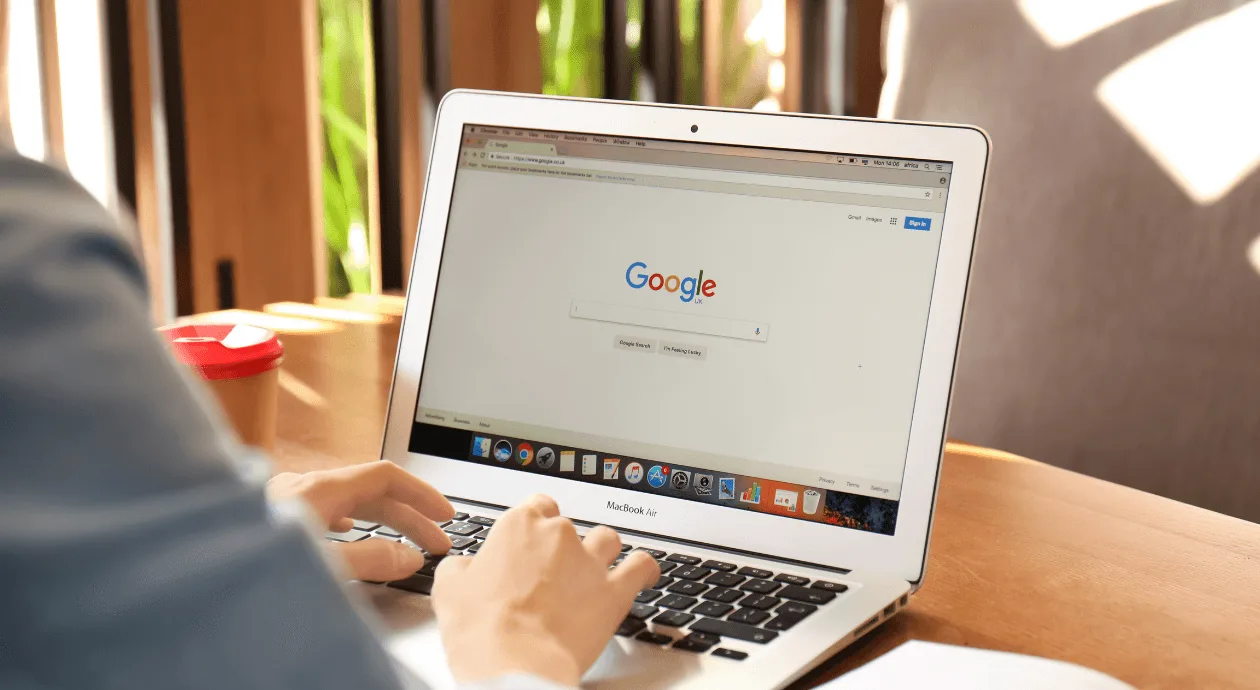
Cover image — Source: pixel-shot.com - Magnific.com


0 comments